Add Contacts
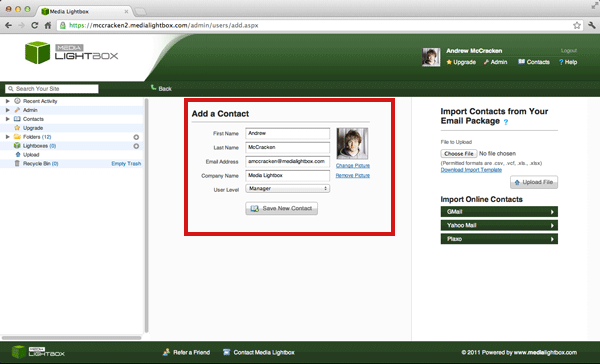
You can add a contact to your account by following the steps outlined below:
- Select 'Contact' on the left of any screen
- Select Add Contact on the bottom right
- A new add contact screen will appear
- Fill in the relevant contact information and select the 'user level' with the small drop down
- you can upload a picture of the contact by selecting 'change picture' and then select the relevant picture from your computer
- If you are happy with the actions made click 'Save New Contact'
Import Contacts
This option is available to all admin users. It will enable the user to import all of their contacts that they have stored in Microsoft Outlook into Media Lightbox. To import a .CSV file, you must first create it. In order to create the file, please follow the steps outlined below:
- Open Microsoft Outlook
- Select File, Import / Export (If using Outlook 2010 – File, Open, Import)
- A modal window will now appear
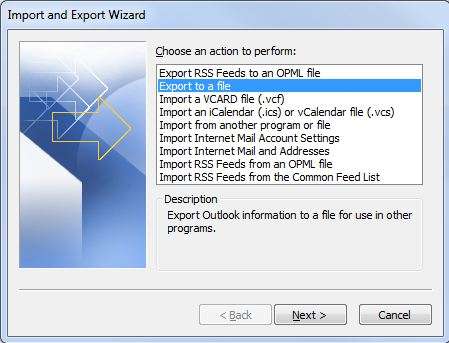
- Make sure you select “Export to a file”
- Click Next
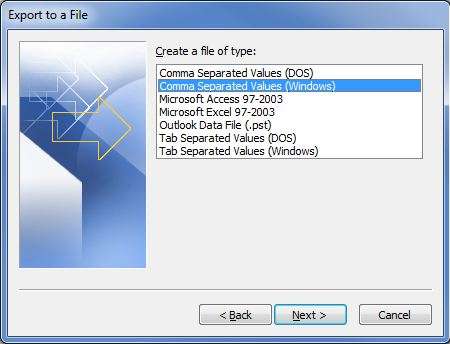
- Make sure you select “Comma Separated Values (Windows)”
- Click Next
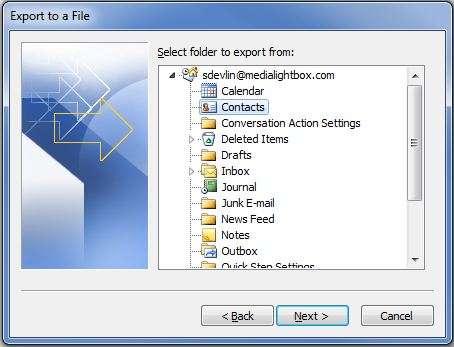
- Make sure you select the “Contacts” folder
- Use the Browse… button to specify a location and file name for the exported contacts.
- For example, create a folder in your documents called “MS-Outlook-csv-file”
- For example, call the file “outlook-contacts.csv”>
- Click Next
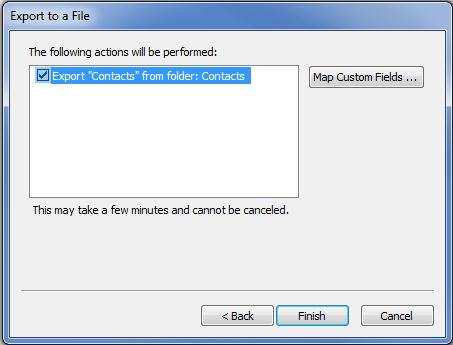
- Now click finish
- As you have now created a .csv file you will be able to import all of these contacts into Media Lightbox at once. To import the .csv follow the steps below:
- Click on the Contacts tab
- Click on the Add Contacts link
- Click on the Choose File link
- Select the .csv file from the folder in which you have just created and click Open
- Click on the Upload button
- A success message will be displayed
- The list of the users that have been added will also be displayed