All users of the site will have the ability to create a public link.
To do this you first highlight the files you want to create a link for. You then go to the drop-down actions menu and hover the mouse over the Share tab. A list of options will be made available – Public Link and a number of social network sites.
If you click on Public Link, a pop-up window will appear, giving you two options – View Content and Email Link.
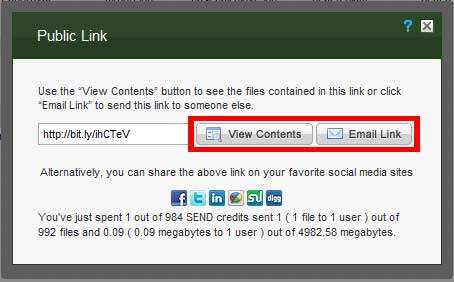
View Content allows you to view the download page, where you can download the file in various different sizes.
Email Link allows you to email the link to another email address.
The pop-up will also give you the option of publishing the link on a number of social networks. To do this, simply click on the relevant networks logo.
Share a Link on a Social Network:
Here are three examples of sharing files from Media Lightbox on Social Networking sites.
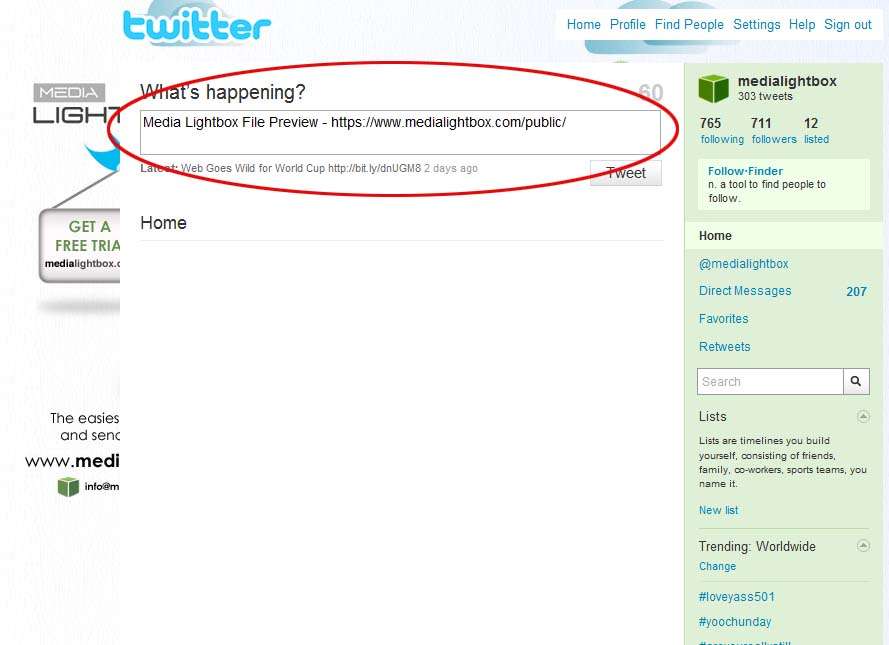
Share on Twitter – When selected it will copy the public link that is generated into the ‘What’s happening?’ text box.
Please note: You need to be signed into Twitter before you select the ‘Share on Twitter’ link, or the public link will not be copied in the ‘What’s happening?’ text box.
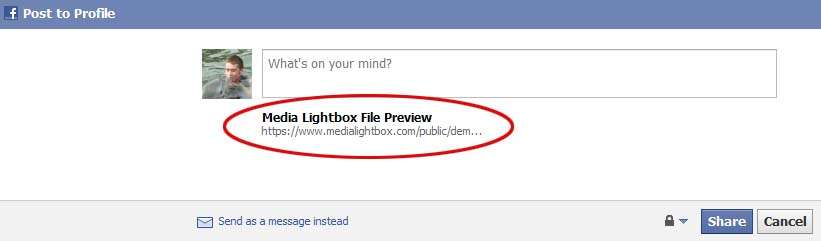
Share on Facebook – When you select this option, you will be prompt to login, if you are not signed in. Once signed in, your public link will be displayed, as shown below. The final step is to click on the ‘Share’ button to make your public link available on your Facebook page.
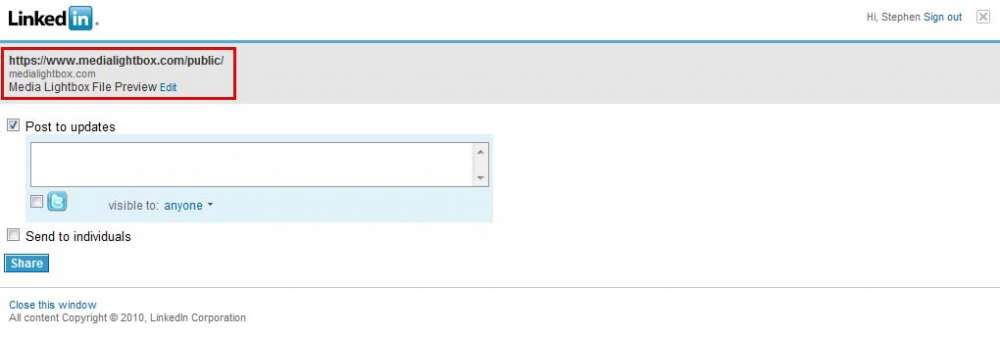
Share on LinkedIn – When you select this option the public link will be copied to your LinkedIn account. If you have not signed in, you will be prompted before the link is displayed, as outlined in the screenshot below. Once you are on this screen, the final step is to click on the ‘Share’ button to share your Media Lightbox public link.