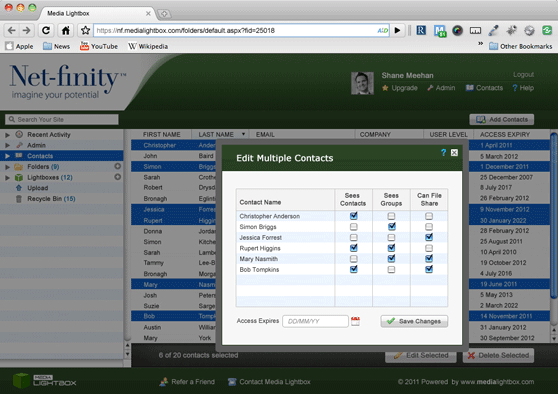
This page shows how to Edit Contact Information, Edit Folder Access and Send Contact Details and edit multiple contacts, see the relevant steps below:
Edit Contact Information
- Select the 'Contact' tab on the left of any screen
- On the main contact screen click 'details' on the contact you want to edit
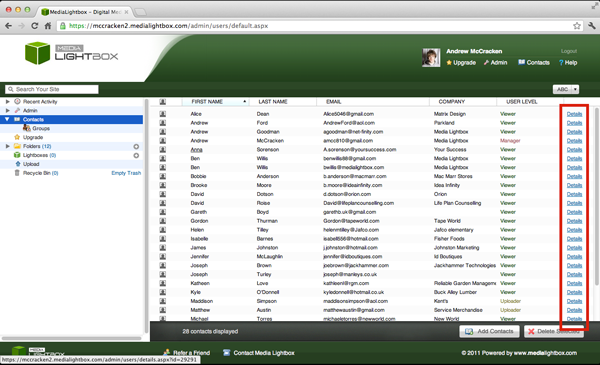
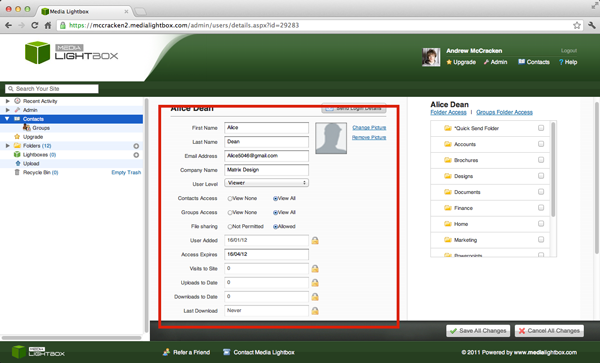
- A new screen will appear
- Under the contacts name (below it is Alice Dean) you will be able to edit all details including adding/editing a contact picture
- Once happy with the changes click 'Save All Changes'
Folder Access
- Select the arrow on the 'Contact' drop down tab on the left of any screen
- On the main contact screen click 'details' on the contact you want to edit
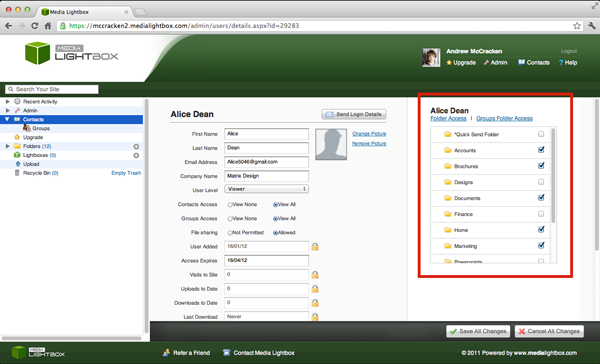
- On the right of the screen you will see all folders the contact has access to
- This can be changed by ticking or un ticking the relevant folders available
- Once happy with the selection click 'Save All Changes'
Send Login Details
Login details can be forgotten, in this case it is possible to send any contact their login details, follow the simple steps below:
- Select the arrow on the 'Contact' drop down tab on the left of any screen
- On the main contact screen click 'details' on the contact you want to edit
- Click the button 'Send Login Details'
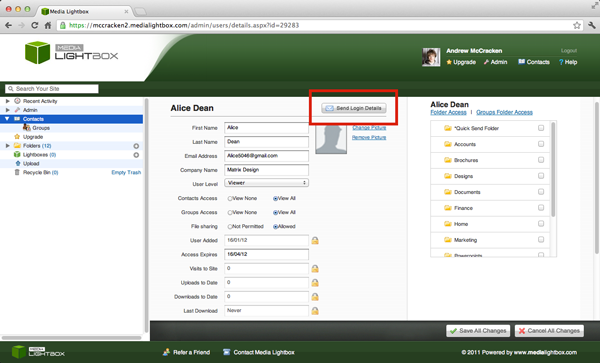
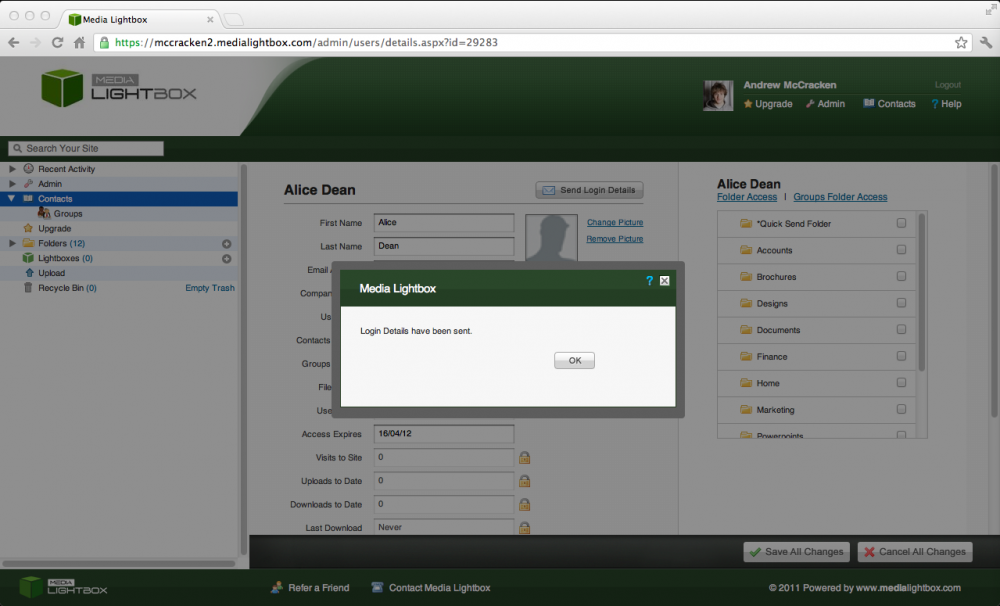
- A new screen will appear saying the login details have been sent click 'Ok' to return to the contact screen
Editing Multiple Contacts
- Select the arrow on the 'Contact' drop down tab on the left of any screen
- Click a contact and hold shift then select any other contacts desired
- Click 'Edit Selected'
- You can edit 3 features with a tick or un-tick for each selected contact (see contacts, see groups and file share)
- Once happy with the selection click 'Save Changes'